Buy anything from 5,000+ international stores. One checkout price. No surprise fees. Join 2M+ shoppers on Desertcart.
Desertcart purchases this item on your behalf and handles shipping, customs, and support to UAE.
🔗 Unlock your radio’s full potential with the ultimate programming cable!
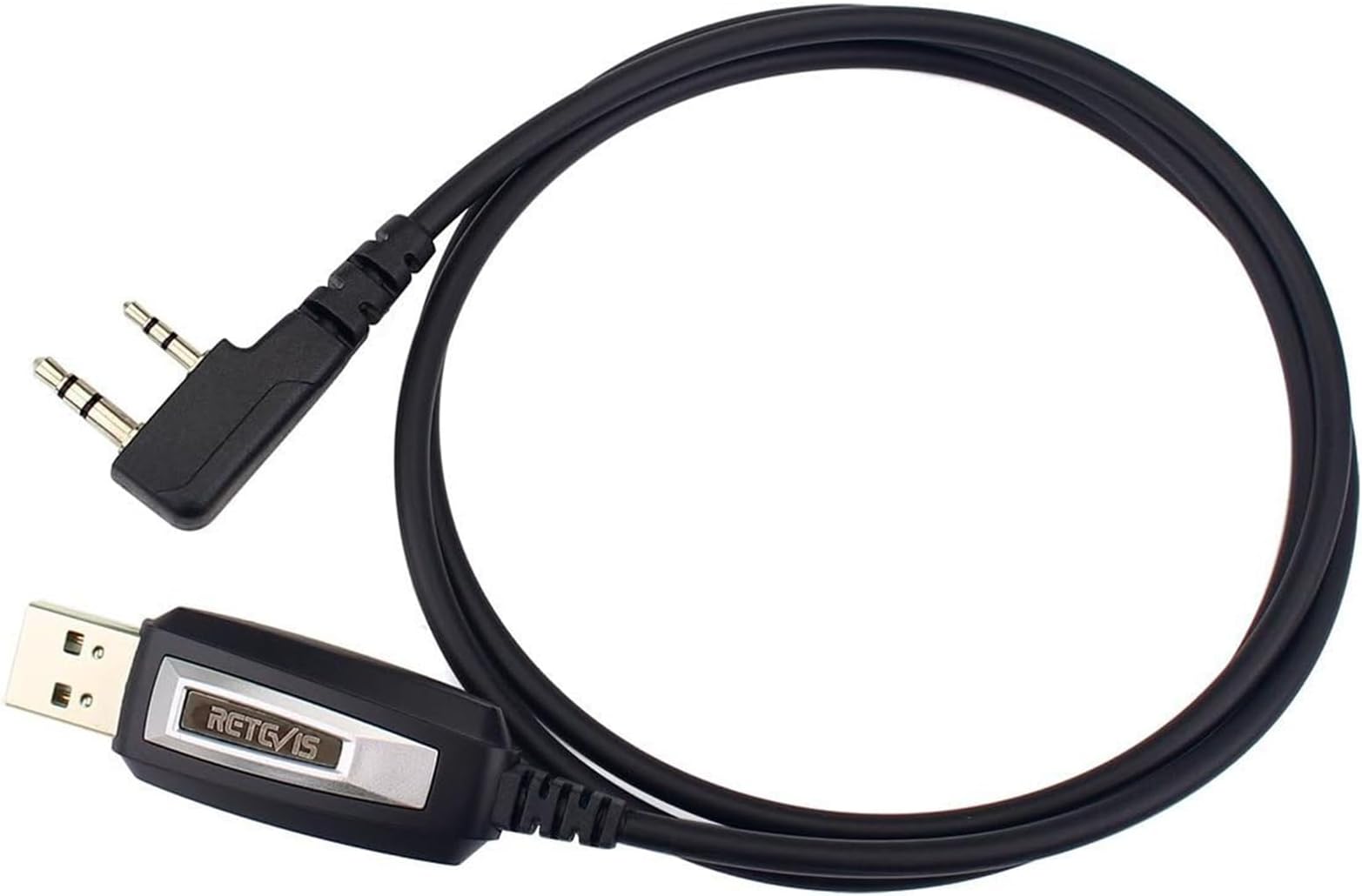
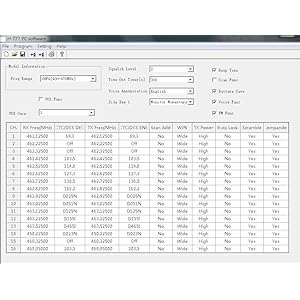
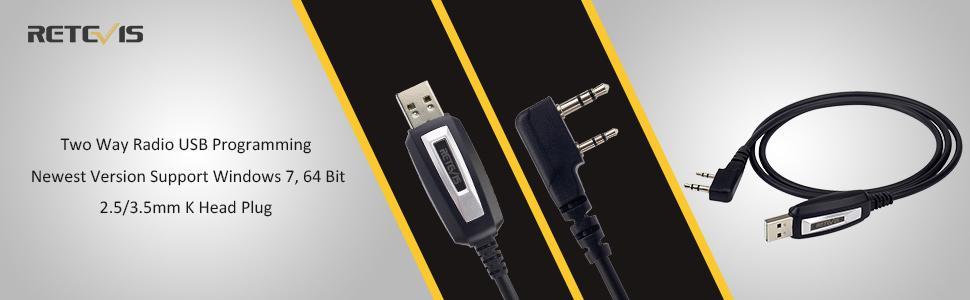
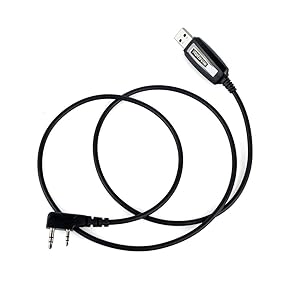
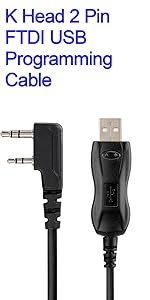
The Retevis 2 Pin USB Programming Cable is a precision-engineered accessory designed to connect your compatible two-way radios to a PC for easy frequency and setting programming. Supporting Windows 7 and 8 with reliable USB drivers, it features a 2-pin 11mm connector and a 100cm cable length, compatible with popular models from Baofeng, Retevis, Kenwood, TYT, and more. This cable offers a 12 Mbps data transfer rate, durable build, and comes with a 1-year warranty, making it the go-to tool for professional-grade radio customization.


| ASIN | B00FS8SSPS |
| Best Sellers Rank | #215 in Two-Way Radio Accessories |
| Brand | Retevis |
| Brand Name | Retevis |
| Cable Type | USB |
| Color | Black |
| Compatible Devices | Retevis H777 RT22S RT21 RB17P RB89 RT3S RT85 RT-5R Baofeng UV-5R BF-888S Arcshell AR-5 TYT Kenwood Walkie Talkies Compatible Devices Retevis H777 RT22S RT21 RB17P RB89 RT3S RT85 RT-5R Baofeng UV-5R BF-888S Arcshell AR-5 TYT Kenwood Walkie Talkies See more |
| Compatible Phone Models | Retevis RT22 RT21 RT68 RT22S RT19 RT86 RT15 H-777 NR10 RT85 RB89 RB29 Baofeng UV-5R BF-888S Arcshell AR-5 TYT Walkie Talkie Compatible Phone Models Retevis RT22 RT21 RT68 RT22S RT19 RT86 RT15 H-777 NR10 RT85 RB89 RB29 Baofeng UV-5R BF-888S Arcshell AR-5 TYT Walkie Talkie See more |
| Connector Gender | Male-to-Male |
| Connector Type | Usb |
| Customer Reviews | 4.4 out of 5 stars 1,428 Reviews |
| Data Transfer Rate | 12 Megabits Per Second |
| Indoor Outdoor Usage | Indoor, Outdoor |
| Item Length | 100 Centimeters |
| Item Shape | Round |
| Item Weight | 0.06 Pounds |
| Manufacturer | Retevis |
| Model | TYT-UV8801 |
| Model Name | FBA_57901CBF0E3AB7AF |
| Number of Pins | 2 |
| Other Special Features of the Product | Before you order it,please double-check if your radio model in the compatible list., Newest Version Support Windows 7 64 Bit |
| Part Number | FBA_57901CBF0E3AB7AF |
| Recommended Uses For Product | for retevis rt22 rt21 rt68 rt86 etc |
| Special Feature | Before you order it,please double-check if your radio model in the compatible list., Newest Version Support Windows 7 64 Bit Special Feature Before you order it,please double-check if your radio model in the compatible list., Newest Version Support Windows 7 64 Bit See more |
| Specification Met | USB-IF |
| UPC | 696744180971 |
| Unit Count | 1.0 Count |
| Warranty Description | We provide 1 year warranty for accessories and 30 days no reason to return. Beyond the warranty period: We still offer maintain service, buyers are required to afford corresponding costs. We processed in the most hassle-free way possible.You just need to contact with us on Amazon ,we will reply you within 12 hours. |
J**G
Handy programming cable for many Retevis transceivers.
Works great programming the two different versions of Retevis radios. Interestingly, I was able to program Retevis RT27 transceivers to perform very close to GMRS standards. This includes frequency offsets and squelch tones. Some radios that were programmed with only 14 channels could be reprogrammed for 22 channels. You can find the Windows only programming software for free on the Retevis web site.
H**L
These should come with the BAOFENG UV-5R because they are essential.
I give this product 5 stars because it worked fine after installing all the software it needs. I just got it yesterday. So, any other reviews on here saying they don't work are either competitors turning you away or they got a broken dongle. I assure you I am not a bot or some paid review. Read my other reviews, I have no issue with telling it like it is if they phck me. You can program your BOAFENG by hand, but it would take so much time to key in all those long frequencies by hand it's ludicrous. That is why I think they should ship these programming dongles with the product. 1st thing I did was instal the cable's driver on baofengradio com website (at the very bottom) as the youtube instructional video I found on google said I should. Although it may have been plug and play for my up to date version of Windows 10, I just followed instructions I had off of youtube. (pay attention to the com port it is on!) See windows device manager under "ports (COM & LPT)" and see if there is a little bell warning you the drivers don't work. I think you can find the com port there as well. youtube has a plethora of videos about programming the BOAFENG UV-5R and setting up the cable. Also you'll need to download a program like "CHIRP" or the software you get off of baofengradio com. You should download both and watch videos to decide which. I found the BOAFENG software easier to use initially. But the CHIRP software has a few more clear options. It's going to take you some time like anything to learn them. PS I ran both of these setup programs and their cabs on virustotal com and they came up negative for any virus or adware.
W**N
Connected Walkie-Talkie to Windows software
This worked well with my Retevis RB66P walkie-talkies. It connected directly with the Windows software after installing the specific drivers from the Retevis website.
H**K
Worked for Baofeng UV-5R using CHIRP Software
Good news – the cable worked and allowed me to program my Baofeng UV-5R from the comfort of my desktop. However, this is not a “plug and play” cable and will require some effort on your part, as well as reliance on information and software available without charge on another website, to get it to work. The first step is to put aside the mini-disc with the software and drivers that came with the cable. You will not be using it. What you need to do initially is to go to the Miklor.com website and download to your computer CHIRP memory programming software. When that’s downloaded, then the next step is to download from the Miklor site the correct driver for the cable. Apparently, the cable only works with a 2007 version of the driver software. After you download the driver from Miklor, the version of Windows installed on your computer will try to update that driver. The Miklor site explains this in detail and walks you through the process of installing the driver and preventing your computer from updating it. Before you connect the radio to the computer, using the VFO/MR button, put your radio in the channel mode and scroll through the memories. The Baofeng UV-5R has 128 memory slots (0-127). For some reason, my radio’s memory slots 0-20, and 127 had assigned frequencies in them. Since they weren’t frequencies that I wanted, and since CHIRP can’t overwrite frequencies already in the radio’s memory, I used the memory channel delete process from the radio keypad to delete all but 2 of those frequencies. To delete from the keypad, press [MENU] 2 8 [MENU]. Then using the scroll buttons, go to the channel number you want to delete and press [MENU] [EXIT]. I left two frequencies in the memory just for test purposes, as explained below. Now that you’ve installed the CHIRP software and the appropriate cable driver to your computer and have cleared out unwanted memory frequencies from your radio, next connect the computer to the Baofeng with the cable and turn on the Baofeng. Before you can begin to program memories into the radio, there is one more step you must take. You will need to create a template in CHIRP for your radio. You do this by downloading the radio’s memories to CHIRP using the “download from radio” command in CHIRP. As I did this, the two test memory channels that I left in the Baofeng’s memory populated the memory channel chart in CHIRP displayed on my computer screen. This confirmed that the cable was working and that the radio and the computer were communicating. Once you have successfully downloaded from the radio, you can finally begin to program memories on your computer using the CHIRP software. When finished, just upload the programmed memories from the computer to the radio using the “upload to radio” command in CHIRP and you’re done. To check your work, turn off the Baofeng; disconnect the cable; turn on the Baofeng; place it in channel mode using the VFO/MR button; and you should be able to scroll through all the new channels that you just added. CHIRP is easy to use. For the cost of the cable, it’s worth a shot. Programming memories from your computer is substantially easier than doing so from the radio’s keypad. I give the cable 4 stars because as delivered, it’s useless. However, if you download the appropriate software and follow the steps outlined on Miklor.com, you should be able to get it to work. Good luck.
J**A
muy buena calidad
excelente
R**S
Couldn't be easier to use
After having installed the proper prolific driver for my OS, this was totally plug-and-play. I read a lot of reviews about a lot of these cables on Amazon -- including a lot of horror stories dealing with various chipsets and hardware plugs not fitting the device and guys claiming hours and days wasted -- and chose this one based on decent reviews and guys having posted a lot of useful information about drivers, COM ports, et cetera. Still, even knowing that 99% of the "horror" stories people post on Amazon are by folks who don't really understand what they are doing -- I knew I might be rolling the dice. So imagine how pleased I was that I got this thing up and running in less than five minutes -- Prolific driver loaded properly, proper COM port .was found, CHIRP functioned perfectly once I chose to "download radio" selecting my Baofeng UV-5X. I can't promise everybody will have the same experience as me, but this inexpensive cable makes using CHIRP a joy to use!
D**E
Requires several cycles to get radios to connect.
This product is great when you can get it to work. I purchased this cable to reprogram the Baofeng radios I purchased for use at work and for my kids to have at Disney in case we get separated. The Baofeng radios, even the more expensive models, do not connect to the computer on the first go. You have to power cycle the radio, remove the cable from the computer, and restart the program sometimes 10 times in order to get the radios to connect. I'm not sure if my cable is bad but once the radios connect properly they can be reprogrammed quite easily and reprogramming is necessary on Baofeng radios in the USA because they are stock programmed to channels that are illegal to use without an operating license from the FCC. This is my third reprogramming cable and the other two work fine and usually connect on the first try. This cable is not unusable just inconvenient especially for me because I was reprogramming 60 radios and it took me several hours because they were not connecting right away. I was reprogramming the radios for use on a large 240' yacht for the crew. It was a fun job and I had to build a shelf I purchased and wire it up for all 60 chargers and then install it in the engineering control room on the third floor of the engine room. If you are only purchasing a couple radios and aren't constantly reprogramming them then this cable will work for you but I definitely recommend buying a couple different cables from different companies if you intend to be using them frequently so you can find one that works well for you. If at first the cable does not connect don't get frustrated and try a few more times and it should eventually connect as long as you have installed the proper drivers and programming tools.
J**L
Was able to fix the "Radio transmits while Programming" problem...
Recently got my Tech ham license and to celebrate I purchased both a Btech UV-5X3 tri-band radio and a Baofeng GT-3TP Mark III tri-power radio to get going with, and I got this cable to be able to program them with as well. The radio end of the cable was a good fit on both radios, some non-Baofeng cables seem to have this problem but this one doesn't. The build quality on the cable looks pretty good, though time will tell. I'm running under Windows 10 Pro 64-bit and the driver loaded up automatically when I plugged it into the USB port, and I was able to connect to both radios using both CHIRP and the GT-3TP's Baofeng app. Only problem I ran into was not a cable brand specific problem but a problem with USB devices under Windows, and that was the radio would start transmitting 5-10 seconds after it was turned on with the cable plugged in. I tried the steps that were on the miklor.com website regarding the "Radio transmits while Programming" problem, but some versions of the Prolific drivers would actually make it go into transmit mode right away after powering up rather than in the 5-10 seconds of the driver Windows 10 loaded! Then I recalled some old troubleshooting advice for when there were problems with USB devices, and that was to go into the "Power Management" tab for the device and uncheck everything there, turning off all power management for the device. That fixed it! Now when I plug in and power up both radios no more transmitting while hooked to the computer!! Now to figure out what I need to actually program into the radios now that this is all working properly...
M**G
Compatible with Chirp programming software
This cable lets you connect your radio to your PC and write program settings and frequencies using compatible software. The newest version of this cable supports Windows 7 and Windows 8, making it convenient for most users. However, it is worth noting that it does not work with Linux operating systems. Additionally, mentioning that the cable does not come with frequency writing software is essential, so you will need to acquire that separately. In terms of design, the cable has a space of 2 pins 11mm and a length of 100cm, providing ample room for connectivity. The top pin features a 3.5mm stereo ear connection, while the bottom pin has a 2.5mm mic connection. This standard diameter ensures compatibility with hand-held radios, such as Baofeng UV-5R and Retevis H777. One of the standout features of this programming cable is its compatibility with the popular software Chirp. Chirp is widely used for programming radios, and the Retevis cable works seamlessly. This makes programming your walkie-talkies a pleasure, with a user-friendly interface and efficient functionality. Before purchasing this cable, it is important to double-check if your radio model is compatible with the cable. Retevis provides a compatible list, ensuring you make the right choice for your specific radio model.
M**Z
Worked first go
No driver issues whatsoever! Worked first go, thanks. Recommended.
S**R
Excelente
Muy bueno, justo lo que necesitaba
J**R
Funcional con Baofeng
Buena calidad y funcional
M**E
Quick service.
Arrived early and appears as described. Very happy with that service. Have not had a chance to use yet however.
Trustpilot
2 months ago
3 days ago