🚀 Power up your storage game with Tango Pro—speed, silence, and seamless setup!
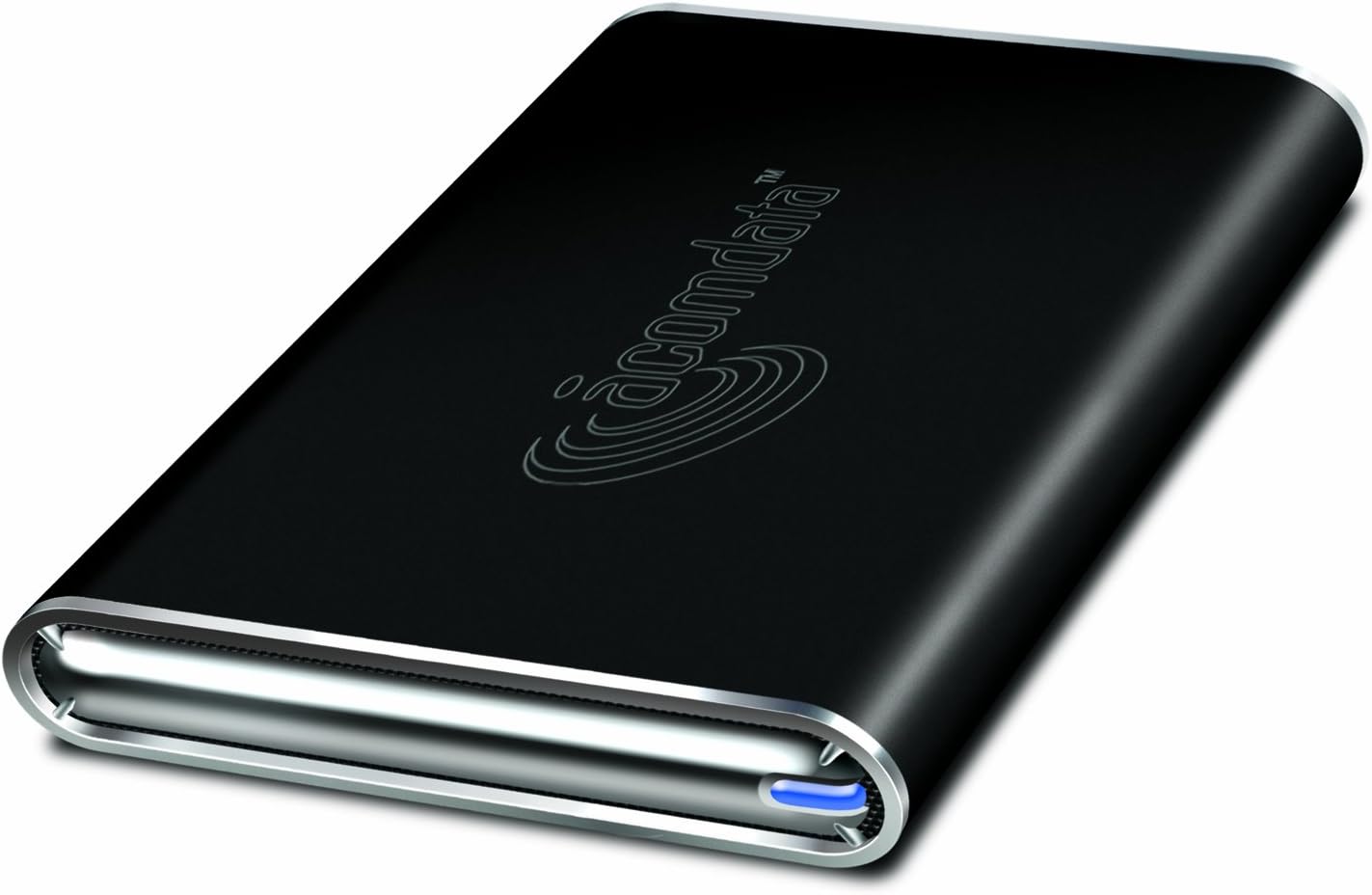
The Tango Pro is a sleek 2.5-inch hard drive enclosure supporting SATA drives with ultra-fast USB 2.0 and FireWire 400/800 interfaces. Designed for silent operation and hot-pluggable convenience, it offers cross-platform compatibility with Mac and PC. Included cables and a 3-year warranty make it a reliable, plug-and-play storage upgrade.
| ASIN | B002JTX8Y0 |
| Additional Features | Portable |
| Brand | Acomdata |
| Color | Black |
| Compatible Devices | Mac, PC |
| Connectivity Technology | USB |
| Customer Reviews | 3.5 out of 5 stars 49 Reviews |
| Form Factor | 2.5-inch |
| Global Trade Identification Number | 00708769031234 |
| Hard Disk Form Factor | 2.5 Inches |
| Hard Disk Interface | USB 1.1 |
| Hardware Connectivity | USB |
| Hardware Platform | Windows |
| Installation Type | External Hard Drive |
| Item Weight | 9.6 ounces |
| Manufacturer | Acomdata |
| Mfr Part Number | TNGXXXUFBE-BLK |
| Model Name | Tango Pro |
| Model Number | TNGXXXUFBE-BLK |
| Special Feature | Portable |
| Specific Uses For Product | Business |
| UPC | 102645808970 708769031234 |
P**Y
Cheap...in price ONLY.
I've owned now three different external 2.5 inch drives for my Macbook Pro. After my OEM internal 500gb Seagate drive failed two days before going to Asia, I decided I was never leaving town again without a bootable drive as backup. The first external drive I had was a LaCie Rugged drive. Not bad, but wanted a 7200rpm drive. Second, I purchased OWC's Mercury on the Go external because it was so highly rated. I had no problems with it except it would get exceptionally hot...nearly too hot to touch comfortably. Another big downside for me was that I couldn't remove the OWC drive from the enclosure w/o voiding the warranty so that if my MBP's drive failed I was bound to always booting from an external drive rather than being able just swap the drives. While helping a friend install an upgraded drive in his Macbook, I found this little guy on Amazon. Checked it out and found that it comes with an Oxford chipset as did the OWC so thought I'd give it a try. I liked it so much, I bought one for myself and am selling my OWC. The instructions for disassembling the enclosure are a bit confusing (or were to me anyway)...but once you figure it out it is super easy. Just remove the two screws in the back of the drive, remove the faceplate in the back and the drive then slips out the front. Then you just slide your hard drive onto the tray, screw the (included) four screws to secure the drive on the tray, slide the drive in, put the face plate back on and screw the two screws back in place and you're set to go. I use it with the Firewire 800 for the faster speed and love it. I have a 500gb 7200rpm drive in it. Yes, it gets very warm...but to be honest, it does not get nearly as hot as the LaCie (which only had a 5400rpm drive) OR the Mercury on the Go with the same drive. I can easily hold this in my hand even after cloning 200gb of files onto the drive. Pros: Easy installation Small and light (great for traveling-slides in/out of my case easily) Can remove the drive to swap in laptop if necessary Runs off of computer's firewire--does not need additional power source Does not get too hot (in my opinion) Quiet Cons: The firewire cable is high quality, but too long and bulky for travel (not really a con overall...just for traveling) Instructions are a bit sketchy It comes with Firewire 800 & 400 cables as well as a USB2 cable. It also has a port for external power but no AC adapter. I have not needed one and am not sure why you would as it runs fine off the computer power. My only question now is durability. We'll see how long it lasts. But so far, so good.
K**N
Intermittent failure, support non-existent
Bought this from Amazon, Initially seemed to work, however, with larger data transfers the unit would "eject" from the computer even though the cable was still attached and cause data loss. I've tried with 2 separate SATA drives, and on all 3 interfaces. I am fairly certain the unit is defective, however it took too long for this defect to manifest and I missed the return window so I am stuck with the unit. I've registered the product with Acomdata, and filed 2 separate support tickets with them. I've heard nothing from Acomdata despite the fact that their support ticket system says I will hear from someone within 3 days. I don't think I have any options left, and the lack of any suport or even an email from Acomdata has been so frustrating that I actually bothered to write my first Amazon review just to be able to warn other buyers to avoid this manufacturer. I am sure some of the buyers of this product have had success, so I am not saying they are all bad units, but the fact that I got a bad unit and I have no way to use the warranty coverage from Acomdata tells me to stay away from this manufacturer because they are leaving their customers high and dry when it comes to support.
R**S
For me, works fine with a power adapter - not bus power
Like a few others here, I am seeing that I need a power adapter or my drive won't mount. I put a Hitachi 320GB 7200 rpm drive in this case, and I'm using it with a mid-2007 MacBook Pro (Santa Rosa 2.2Ghz, 10.6.2). I bought this case specifically to use FW800 and bus power. I already had an eSATA case for the Hitachi, but my eSATA express card was flaky and of course that case required a power adapter. I'm a musician that needs a portable and reliable rig, and I don't like having wall warts to deal with every time I set up for a gig. I'm considering returning this because I'm pretty sure my MBP delivers the correct amount of current through its FW ports to run this drive (I have no issues with other bus-powered cases). The curious thing is that when I first put the drive in this case, it DID work with bus power. However I didn't try doing any heavy lifting at that time, I only saw that the drives mounted OK. I just got back from a recording session where the engineer put 1.5 gigs of files on this drive in one shot. The drive mounted OK on his older Mac G4 desktop using FW400, and the file transfer went fine. Now the drive won't mount using bus power. Could it be that there's circuitry on the bridge board of this case that regulates the bus power to the drive, and it failed after the larger-than-usual file transfer? Also, as others have noted, the case does get pretty warm. As others say, it might be the aluminum dissipating the heat, which is a good thing, but I've has several of these 2.5" cases and none of them have gotten as warm as this one.
S**U
FW800 advantage depends on other factors
Quick tip and a FireWire speed comparison! Wrap a few rubber bands around this enclosure for grip and a bit of cushioning. Based on my hard drive cloning test I believe the FireWire 800 interface for which you pay twenty extra dollars (over the USB+FW400 version of this enclosure) only yields a small advantage due to hardware bottlenecks. I copied my MacBook Pro 2.2GHz/5400-rpm hard drive (120gb total, 80gb filled) to a 5400-rpm 500gb hard drive that I had installed (quite easily) into the Acomdata TangoPro USB 2.0-FW400-FW800 enclosure. Whew, let me catch my breath! Using the SuperDuper disk cloning/backup utility I cloned my hard drive once using the FW400 interface and again, with no other changes, using the FW800 interface. Result? The "slower" interface took 1:33 while the "faster" FireWire 800 interface took 1:31 minutes. Woohoo, I paid twenty dollars to save two minutes! Not worth it. In conclusion you might see a noticeablely quicker transfer/read/write time if your Mac laptop has a high-end processor and the hard drives in both your Mac and the external enclosure are high performance (7200-rpm or more). Short of that I think you'll be better off settling for a less expensive enclosure that has just the USB 2 + FireWire 400 interface, such as Acomdata Tango 2.5" USB/FireWire400 SATA Drive Enclosure Kit - Black (TNGXXXUFAE-BLK) .
D**T
You may need a power adapter or added cables
I wanted a fast interface to upgrade a 160GB/4800RPM drive to a 500GB/7200RPM one for my Macbook Pro. This one seemed to have the speed interface, durability, and construction that made it a buy. The unit arrived as pictured and while the instructions were sparse, it's not difficult to figure out what to do. The screws holding the unit front and rear panels are very small (Philips #0/00) and the tabs they screw into sufficiently soft that I worried about stripping the threads. You take out the 2 screws, pull off the rear panel, and the connector and tray slide out the other end. Simple, but effective. I tightened the screws until "snug" and had no problems. The drive slides into the connector without a problem and there's a thin piece of plastic that insulates the drive from the metal case and provides a smooth surface. Even with the unit screwed together, I could hear the drive move. It took about 2 hours to transfer 120GB+ to the unit using FW400. Data transfer was no problem. Power, however, was. I ended up using 2 FW400 cables to get enough power to do the transfer. The front panel display blinks if power isn't sufficient. There's a 5VDC plug but I couldn't find a corresponding brick. Radio Shack may be the place to go. The Hitachi may be a power hog, so the drive that'll go into the case will have to be fully powered either by Firewire or USB single cable. Pros: Looks like the picture Metal Case. Firewire 400/800 Optional DC power plug. Cons: Weak metal tabs securing the connector panel to the unit. Gets very warm. - This could be because of the power requirements of my particular drive, the plastic insulation, or lack of heat removal. 5VDC power. - When I see this, I think they didn't add it as a freebee, but as a warning that the unit sucks more power than you're used to. Drive movement. - Gently moving the drive case audibly resulted in a clunk or 2 from inside. Put it down and it'll be fine. Price. - I guess if you want fast data transfer (FW), you're going to have to pony up the money. I don't know how long it'd take to do the transfer @ USB speed. Recommended.
A**R
Nice build quality 2.5-inch disk enclosure
I have the Acomdata Tango Pro 2.5-inch SATA disk enclosure with USB 2.0, Firewire 400 and 800 I/O ports on the back. It also has a small 5v DC power jack just in case your I/O port DC power is marginal or weak. I needed the various I/O ports as I have a number of different PC's and Macs where I plan to use this enclosure. I tested the Acomdata and my disk on all of them and none required that I supply 5v DC to the enclosure. The enclosure does not ship with a 5v DC wall wart adapter but you'll probably never need it anyway. Mine shipped with 1-meter (3-feet) long FW400, FW800, and an incorrect USB 2.0 cable. The Acomdata supplied USB cable came with a rather large type-B connector typically used to attach to a printer. The enclosure needs a Mini-USB style connector. No big deal as I happened to have the correct cable from another project. I'm using the enclosure to house my 128GB 2.5-inch OCZ brand SATA Solid-State Disk. Installation was a snap but I highly recommend having a very small philips screw driver handy as the back panel screws on the enclosure are pretty small. You unscrew the two back panel screws then push on the I/O port connectors which slides the entire assembly out from the front of the case. Slide your 2.5-inch SATA disk onto the SATA connector and secure the disk from the bottom four mounting holes using the Acomdata supplied screws. Slide the assembly back into the case and secure it from the back panel using the two tiny philips screws. Fit and finish are very good on this enclosure and the back panel tolerances are a bit tight but if you align everything just right, it will go back together perfectly. I tested my enclosure with the OCZ 2.5-Inch SSD on three PC's and three Macs using USB 2.0, FW400, and FW800. It worked perfectly on all the computers including a 5 year old HP tower PC via USB 2.0 and FW400, 2 year old Dell tower PC via USB 2.0, and a 2 year old Lenovo laptop via USB 2.0. FW400 and FW800 worked on my two year old Intel MacBook Pro 15-Inch. FW400 worked on my Intel MacMini and FW800 worked on a 1 year old Intel iMac. I'm very pleased that all interfaces worked flawlessly on this enclosure. The case gets a little warm with the OCZ SSD inside but not hot and the front panel blue LED is bright but not annoying (to me anyway). Just for grins I decided to test large-file disk write speeds using USB 2.0 vs FW800 on the MacBook Pro. I used the OCZ SSD partitioned using the Mac's Disk Utility and called it "SSD". This was a simple test using command line utilities built into Mac OS X from a terminal window: cd /Volumes/SSD time mkfile 1g TEST <Enter> This times the creation of a 1GB file called TEST and returns the timed result once completed. USB 2.0 took 45 seconds FW800 took 19 seconds FW800 is obviously much faster than USB 2.0 but I'm sure that FW800 is still the bottleneck vs what the SSD is really capable of. As a comparison my LaCie 7200rpm disk via FW800 performed about the same as the SSD. eSATA would be faster but since I have no eSATA interfaces on any of my computers or on this particular enclosure I didn't test using that I/O technology. In any case, the enclosure is well built, versatile, and it's doing what it's supposed to w/o any issues. 5 Stars! P.S. The model with the FW800 interface is still rather pricey as of this writing so if you can get by with USB 2.0 or FW400, I believe that model is about half the price.
M**Y
Very bad power handling
I'd like to recommend this product, but unfortunately I cannot. The problem is that it simply does not handle the full power range required by the specs. The first version of this device I got refused to run my drive (a solid state drive using about 6W of power) via FW. I sent it back and was told its FW ports were bad. The replacement has FW ports that work --- but that STILL don't support the full 7W that FW supplies. The situation on the USB side isn't much better --- a low-power drive that should run off a single USB connection requires two USB connection to get it spinning. All this may seem like so much technical mumbo-jumbo to you, the reader, but it matters. When you buy a drive and insert it into an enclosure like this, you just expect things to work --- you plug it into your computer and life is good. You don't expect that things will sorta appear to work until you write a lot of data to the disk, at which point it disconnects from your computer because the drive doesn't have the power it needs and has reset itself. You expect that, unless you are buying some really weird drive, standard 2.5 inch drives will just work off a single USB or FW connection. AcomData seem well aware of the power limitations of this drive --- the manual that comes with it devotes most of its pages to explaining how to use the cables they gave to "top up" the FW connection with extra power from USB. Apart from the fact of WTF should I be doing this, none of their suggestions ever worked for me. My recommendation -- skip this. Life is too short to dick around with products that don't properly support standards (in this case, power standards) and that appear to work and then stop work apparently randomly.
C**T
So-so, power-hungry enclosure
Pros: - simple and fast installation so definitely not a hassle to swap new hard drives in at a later date - decent LED - body is high-quality aluminum (but see below) Cons: - anything beyond a low-performance 5400rpm laptop drive requires extra USB port or a AC adapter (not included). - side pieces are cheap plastic (but see above) Summary: Pretty inconvenient if you're looking to power a higher-performance drives. There are better options out there. If FW800 is a requirement, I'd recommend a higher-quality Oyen Digital option. If FW400 is required I would invest $4 in an 800-400 adapter.
Trustpilot
4 days ago
3 weeks ago